Inspire Blog Tag: interactive

Boost Your Student Engagement with Qualtrics: An Overview

Instructors and course designers often use quizzes or forms for assessment, retrieval practice, self-checks, or collecting information from students. Did you know that Qualtrics surveys can take your interaction game to an even higher level of sophistication? Qualtrics surveys can easily be linked to or embedded in a page in your Learning Management System. They can also be added as an assignment through the LTI integration. The LTI integration has recently become an available feature for Oregon State University Canvas users. The integration links the survey to the student’s LMS account and is useful for awarding points automatically for completing the survey. In addition, several types of questions can be scored; thus, a survey can be used as a quiz … Boost Your Student Engagement with Qualtrics: An Overview

Blended Learning: What Does the Research Show?

This post is the second in a three-part series that summarizes conclusions and insights from research of active, blended, and adaptive learning practices. Part one covered active learning, and today’s article focuses on the value of blended learning. First Things First What, exactly, is “blended” learning? Dictionary.com defines it as a “style of education in which students learn via electronic and online media as well as traditional face-to-face learning.” This is a fairly simplistic view, so Clifford Maxwell (2016), on the Blended Learning Universe website, offers a more detailed definition that clarifies three distinct parts: Any formal education program in which at least part of the learning is delivered online, wherein the student controls some element of time, place, path or … Blended Learning: What Does the Research Show?

Asynchronous Conversations in VoiceThread

student response slide

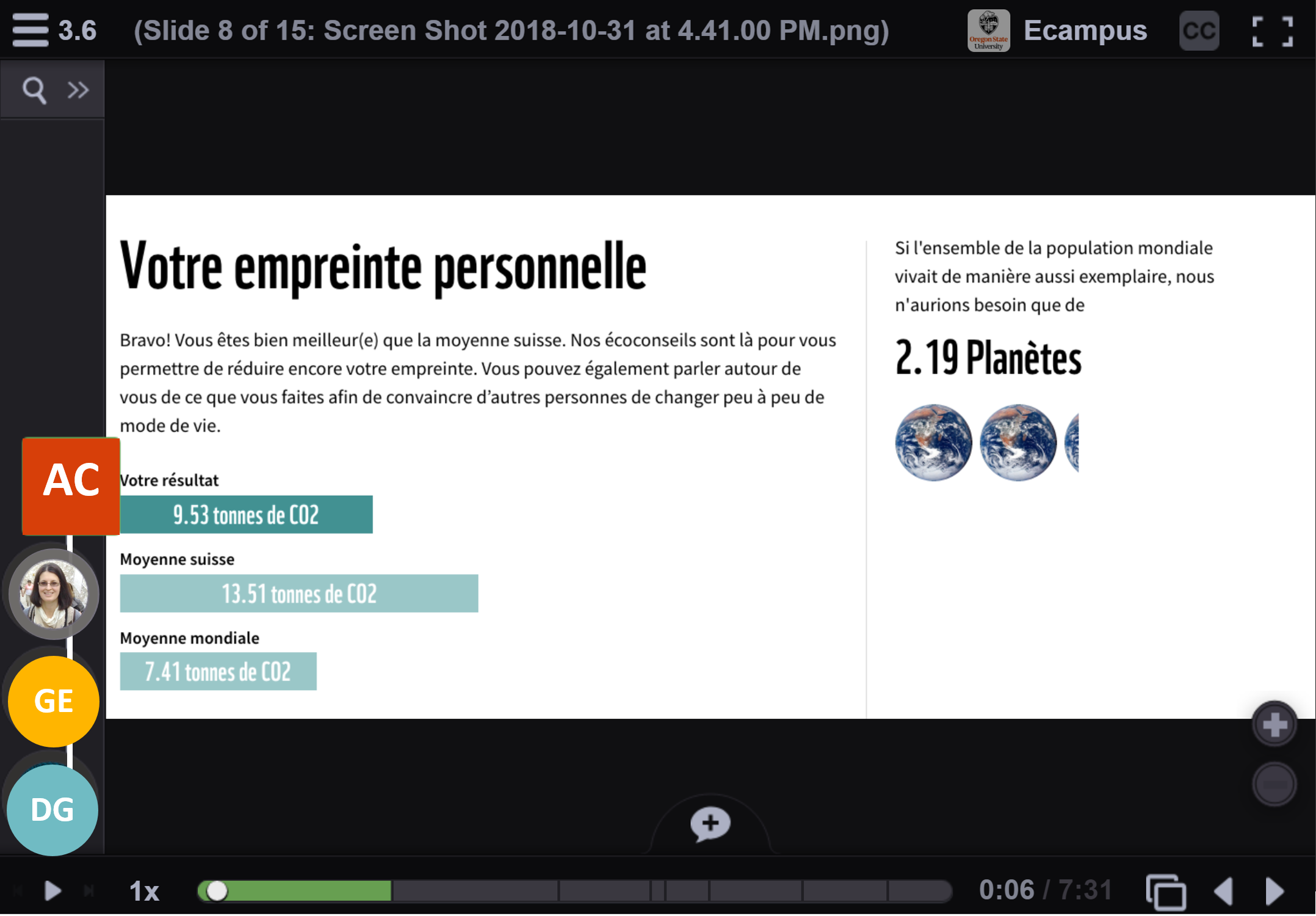
In my last post, I described how Ecampus courses use synchronous study sessions to provide listening and speaking practice to students of world languages. Much of the Ecampus language learning experience is entirely asynchronous, however, to provide flexibility for our students. So how exactly do students converse asynchronously? This post will describe the design of asynchronous listening and speaking exercises in 300-level French conversation courses, executed by Ana-Maria M’Enesti, PhD, and facilitated via VoiceThread, a slide show within the LMS that displays course content about which participants comment via text, audio, or video. VoiceThread was an appealing platform because of the ease with which students can add audio or video comments, more streamlined than the protocol for uploading video to … Asynchronous Conversations in VoiceThread

Active Learning Online – Part 2

Active Learning Online – Part 2 The first post about active learning looked at how to include active learning in an online course. You heard about how a history professor used an interactive timeline. Each student added images, facts, and descriptions to the timeline, and the result was a visually-rich historical review. Students had fun while learning about facts and events. This is an example of collaboration and active learning at its best. The second example focused on interactive textbooks as an alternative to printed books. The Top Hat product combined words, images, video, and engaging activities to improve learning and make it more active. In today’s post we look at two new active learning ideas: mind mapping and annotated reading. … Active Learning Online – Part 2

Create Interactives with H5P (Five Simple Steps)

H5P (HTML5 Package) is a free online tool that allows you to create and upload, download, and share HTML5 interactive content using H5P.org or by installing a H5P plugin on Drupal, Moodle, or WordPress. 5 Steps to use H5P.org
  Go to https://h5p.org Click on “Create free account” [located in top right corner] and create a free H5P user account. Login to your H5P account with your username and password. Navigate to the “Examples & downloads” page and choose one of the H5P Content Types. Use the “clone content” feature to create a new piece of H5P content from one of the examples. Give the cloned content a title and adapt the cloned content to suit your needs. Choose from the … Create Interactives with H5P (Five Simple Steps)